Once upon a time, solid-state drives (SSDs) were the cool, quiet alternative to clunky hard disk drives. Today, with the advent of lightning-fast NVMe technology—especially PCIe 4.0/Gen4 and the cutting-edge Gen5—these storage powerhouses can get surprisingly toasty. So, when is an SSD heatsink an absolute necessity, and when can you skip it? It's a critical question that impacts not just your system's performance, but also your drive's longevity. This guide cuts through the noise to tell you exactly when to invest in extra cooling.
At a Glance: When an SSD Heatsink is Crucial
- High-Performance NVMe SSDs: Particularly PCIe 4.0/Gen4 and Gen5 models.
- Sustained Heavy Workloads: Think video editing, large file transfers, competitive gaming, or server tasks.
- Limited Airflow Environments: Compact PC cases, laptops, or external enclosures.
- Motherboard M.2 Slots: Especially those with poor natural airflow or close to other hot components.
- To Prevent Thermal Throttling: Ensure your SSD maintains peak speeds during intensive use.
- For Long-Term Reliability: Reduce wear on NAND flash memory and controller chips.
The Unseen Threat: Why Your Blazing-Fast SSD Might Be Slowing Down
Modern NVMe SSDs are marvels of engineering, delivering speeds that were once unimaginable. But with great power comes—you guessed it—great heat. Unlike their slower SATA counterparts, high-performance NVMe drives, especially those pushing the limits of PCIe 4.0 and Gen5, generate significant thermal energy. This isn't just a comfort issue; it's a performance killer.
When an SSD's controller chip and NAND flash memory reach a certain temperature threshold, the drive's built-in safeguards kick in. This is called thermal throttling, and it's essentially your SSD hitting the brakes to prevent self-destruction. While this protects the hardware, it translates directly into a noticeable drop in read/write speeds, turning your "blazing-fast" drive into something much more mundane right when you need its performance the most. Imagine editing 4K video or transferring hundreds of gigabytes, only to have your SSD slow to a crawl midway through. A heatsink can lower these critical temperatures by a significant 10-20°C, often keeping throttling at bay entirely.
Signs You Absolutely Need an SSD Heatsink (Key Use Cases)
Not everyone needs an SSD heatsink, but for specific scenarios, it transitions from a "nice-to-have" to an "absolute must." If any of these describe your situation, consider cooling a priority.
1. You're Rocking a High-End NVMe SSD
This is arguably the most common and critical use case. If you've invested in a cutting-edge PCIe 4.0/Gen4 or, even more so, a Gen5 NVMe SSD, you're dealing with hardware designed for extreme speeds. These drives feature advanced controllers and NAND memory that operate at higher frequencies and data rates, inherently producing more heat than older or lower-tier models.
Without a heatsink, these high-performance drives are prime candidates for thermal throttling during sustained operations. You paid for speed; a heatsink ensures you actually get it consistently.
2. Your Workload is Demanding and Sustained
Think about how you use your computer. Are you a content creator, a data scientist, a hardcore gamer, or running a server?
- Video Editors & 3D Artists: Constantly reading and writing large, multi-gigabyte files (e.g., raw footage, project files). This keeps your SSD operating at peak performance for extended periods.
- Large File Transfers: Moving hundreds of gigabytes or even terabytes of data between drives stresses the SSD controller, generating heat rapidly.
- Intense Gaming: While not always sustained, modern games with massive textures and rapid loading sequences can put significant bursts of load on your SSD, particularly during loading screens and asset streaming.
- Server Environments: Virtual machines, databases, and high-transaction workloads keep SSDs constantly active, making a heatsink essential for stability and data integrity.
For these users, thermal throttling isn't just an annoyance; it can directly impact productivity and even lead to data corruption in extreme cases.
3. Your PC Case or Enclosure Has Limited Airflow
The best heatsink in the world can't do its job if there's no cool air to dissipate heat into.
- Compact PC Builds (SFF PCs): These small form factor systems are designed for minimal footprint, often at the expense of generous airflow. Components are packed tightly, leading to heat buildup that passive cooling struggles to manage alone.
- Laptops: Many high-performance laptops use NVMe SSDs, but their slim designs mean constrained internal space and airflow. Often, the M.2 slot is near other heat-generating components like the CPU or GPU, creating a localized hot zone.
- External NVMe Enclosures: These increasingly popular solutions allow you to use an NVMe SSD as a blazing-fast external drive. However, being sealed, they can become ovens for the SSD inside without proper passive cooling built into the enclosure itself. If yours lacks adequate cooling, an internal heatsink for the SSD is a smart addition.
- Motherboard M.2 Slots: Some motherboards place M.2 slots in less-than-ideal locations, perhaps directly underneath a hot GPU or behind other components that restrict airflow. Without dedicated airflow from case fans, the SSD can quickly overheat.
In these "thermal islands," a heatsink acts as a critical intermediary, drawing heat away from the SSD's delicate components and giving it a larger surface area to release that heat, even if ambient airflow is limited.
4. You're a PS5 Enthusiast
Yes, even gaming consoles can benefit! The PlayStation 5 allows for user-upgradeable NVMe storage, and for intense gaming sessions, particularly with graphically demanding titles, the internal expansion SSD can generate substantial heat. Many third-party heatsinks are specifically designed to fit within the PS5's expansion slot, ensuring your added storage performs optimally and reliably during those extended playtimes. It's a niche but definite use case where a heatsink is highly recommended.
Beyond Performance: The Long-Term Costs of Overheating
While reduced speed is the most immediate effect of an overheated SSD, the consequences extend far beyond temporary slowdowns. Ignoring high operating temperatures can have serious long-term implications for your drive's health and the integrity of your data:
- Increased Data Errors: When NAND flash memory cells operate outside their optimal temperature range, they become more prone to errors. This can lead to corrupted files or unstable system behavior.
- Reduced Endurance and Longevity: Every time a NAND flash cell is written to, it experiences a tiny bit of wear. High temperatures accelerate this wear process, reducing the overall lifespan (endurance) of your SSD. Over time, this means your drive could fail much sooner than its rated specifications suggest.
- Potential Data Loss: In extreme or prolonged overheating scenarios, the drive controller or NAND chips can suffer irreversible damage, leading to outright hardware failure and potentially irretrievable data loss.
- System Instability: An overheating SSD can contribute to overall system instability, leading to crashes, freezes, and general unresponsiveness, which can be frustrating and disruptive.
Maintaining optimal operating temperatures isn't just about speed; it's fundamental for performance consistency and the long-term reliability of your investment.
The Cooling Advantage: What a Heatsink Delivers
So, what exactly does a heatsink bring to the table? Its benefits are straightforward and powerful:
- Improved Thermal Dissipation: A heatsink works by increasing the surface area available for heat transfer. It draws heat away from the SSD's hot controller chip and NAND memory, then radiates it into the surrounding air more efficiently than the bare SSD ever could.
- Reduced Thermal Throttling: This is the big one. By keeping the SSD's temperature below its throttling threshold, a heatsink ensures your drive can sustain its peak performance during prolonged, heavy operations. No more frustrating slowdowns when you're in the middle of a critical task.
- Enhanced Drive Longevity: Lower operating temperatures mean less stress on the delicate NAND cells and controller chips. This directly translates to reduced wear and tear, extending the lifespan and endurance of your solid-state drive.
- Greater System Stability: A consistently cool SSD contributes to a more stable overall system. You'll experience fewer unexpected crashes, data corruption issues, and general unpredictability, leading to a smoother, more reliable computing experience.
Understanding Your Cooling Options
SSD cooling isn't a one-size-fits-all solution. There are several approaches, each with its own advantages.
Passive Heatsinks: The Silent Workhorse
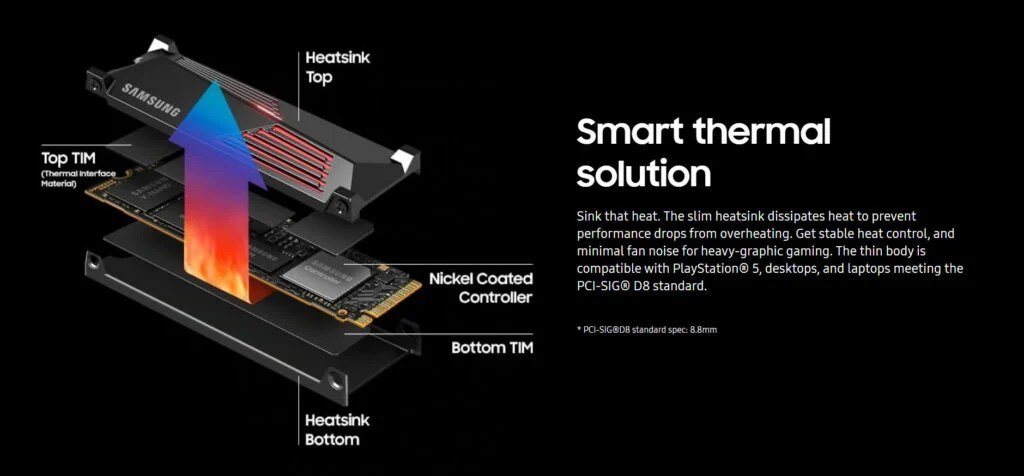
These are the most common and practical solutions for SSDs. Passive heatsinks are typically simple blocks or finned plates made of a highly thermally conductive metal, usually aluminum or copper. They attach directly to the SSD via thermal pads or clips.
- How they work: Heat from the SSD is transferred through conduction to the heatsink, which then dissipates it into the surrounding air through natural convection (the movement of air).
- Pros: Silent, no moving parts to fail, relatively inexpensive, easy to install.
- Cons: Efficiency depends on ambient airflow; they don't actively move air.
- Best for: Most consumer and enthusiast use cases where modest-to-good case airflow exists.
Active Heatsinks: When You Need More Power
Less common for standard consumer SSDs due to space and noise considerations, active heatsinks incorporate small fans or heat pipes.
- How they work: Fans force air across fins, greatly accelerating heat dissipation. Heat pipes transfer heat from the SSD to a fin stack more efficiently.
- Pros: Highly effective at cooling, even in poor airflow environments.
- Cons: Can be noisy, have moving parts that can fail, often bulkier.
- Best for: Extreme performance scenarios, highly constrained environments, or specific enterprise solutions where every degree matters.
Thermal Pads and Tapes: The Essential Interface
These aren't heatsinks themselves but are critical components when installing one. Thermal pads (often pre-attached to heatsinks or sold separately) and thermal tapes are designed to fill microscopic air gaps between the SSD's controller chip and the heatsink. This ensures maximum thermal conductivity, allowing heat to efficiently transfer from the SSD to the heatsink. Always use a good quality thermal pad or tape with your heatsink.
Motherboard Integrated Heatsinks: A Convenient Solution
Many modern motherboards, particularly mid-range to high-end models, now come with built-in M.2 heatsinks. These are usually sleek, aesthetically pleasing plates that screw down over the M.2 slot.
- Pros: Seamless integration, often well-designed, can look great, no separate purchase needed.
- Cons: Performance varies by motherboard model; some are more effective than others. May not be sufficient for the absolute highest-end PCIe Gen5 drives in very demanding scenarios.
- Best for: Users with compatible motherboards looking for a hassle-free, often effective cooling solution.
When a Heatsink is Overkill (And When to Skip It)
Just as there are compelling reasons to use a heatsink, there are scenarios where it's simply unnecessary. Don't add complexity (or cost) where it's not needed.
- Typical Consumer Usage: If your daily tasks involve web browsing, office applications, streaming video, or light gaming, your SSD likely won't generate enough sustained heat to warrant a heatsink. Its brief, bursty operations typically won't trigger thermal throttling.
- SSDs with Built-in Thermal Solutions or Low-Power Controllers: Some SSDs, especially those designed for laptops or less demanding applications, might have efficient low-power controllers or even rudimentary built-in thermal layers that are sufficient for their intended use. SATA SSDs, for instance, rarely require additional cooling.
- Desktop PCs with Well-Ventilated Cases and Adequate Active Cooling: If your desktop PC has excellent airflow from multiple case fans, and your M.2 slots are not obstructed or near other hot components, the natural airflow might be sufficient to keep your SSD cool, even during moderately heavy use.
- SATA SSDs or Lower-End NVMe Drives: These drives inherently produce much less heat than their high-performance counterparts. A SATA SSD almost never needs a heatsink. Even many entry-level PCIe 3.0 NVMe drives often perform just fine without one.
- Space or Aesthetic Constraints: In ultra-compact builds where every millimeter counts, or if you have a specific aesthetic in mind that a heatsink would disrupt, you might choose to forgo it if your performance requirements aren't extremely high.
Ultimately, it comes down to monitoring your drive's temperatures during your typical usage. If you're not seeing throttling and your temps remain within healthy ranges (generally below 70°C under load), a heatsink might be an extra expense you don't need.
Smart Cooling: Best Practices for SSD Health
Beyond just slapping on a heatsink, a holistic approach to cooling will serve your SSD (and your entire system) best.
1. Monitor Temperatures Regularly
Knowledge is power. Use software tools like HWMonitor, CrystalDiskInfo, or your motherboard's monitoring utilities to keep an eye on your SSD's temperatures during idle and under load. This data will be your best indicator of whether a heatsink is actually needed or if your current setup is sufficient. Pay attention to both peak temperatures and how quickly they dissipate after heavy use.
2. Ensure Proper Case Airflow
An SSD heatsink works by transferring heat to the surrounding air. If that air is already hot and stagnant, the heatsink's effectiveness plummets.
- Cable Management: Neatly routed cables prevent airflow obstructions.
- Case Fans: Ensure you have a balanced setup of intake and exhaust fans. Aim for positive pressure (more intake than exhaust) to keep dust out and ensure a steady supply of cool air.
- Strategic Placement: Avoid placing your PC in an enclosed space that restricts airflow.
3. Leverage Motherboard M.2 Heatsinks
If your motherboard came with an integrated M.2 heatsink, use it! These are often quite effective for most mainstream NVMe drives. Make sure to peel off any protective films from the pre-applied thermal pad before installation.
4. Apply Thermal Pads Correctly
When installing an aftermarket heatsink, ensure the thermal pad makes firm, even contact with the SSD's controller chip (and sometimes the NAND chips). A poorly applied thermal pad or one that's too thick can actually hinder heat transfer. Follow the heatsink manufacturer's instructions carefully.
5. Avoid Placing Hot Components Close Together
If possible, install your NVMe SSD in a slot that isn't directly above or immediately adjacent to other significant heat generators like a high-end GPU or a powerful CPU cooler. Heat tends to rise, and components radiate heat outwards, so spacing can make a difference.
6. Update SSD Firmware Regularly
SSD manufacturers occasionally release firmware updates that can improve thermal management algorithms, optimize power consumption, or fix bugs that might contribute to unnecessary heat. Check your SSD manufacturer's support page periodically.
Choosing the Right Heatsink for Your Setup
If you've determined a heatsink is necessary, selecting the right one involves a few key considerations:
- Form Factor Compatibility: M.2 SSDs come in various lengths (e.g., 2280, 22110). Ensure the heatsink you choose matches your SSD's size. Most consumer M.2 drives are 2280 (22mm wide, 80mm long).
- Material Quality: Look for heatsinks made of quality aluminum or copper. Copper generally offers superior thermal conductivity but is heavier and more expensive. Aluminum is a great balance of performance and cost.
- Installation Method: Heatsinks typically attach via clips, screws, or adhesive thermal tape. Screw-mounted options often provide the most secure and consistent contact. Adhesive-backed options can be simpler but ensure the adhesive doesn't damage the SSD label (which might affect warranty in rare cases).
- Clearance and Airflow: Consider the physical space inside your case. Will the heatsink obstruct your GPU, CPU cooler, or RAM sticks? Is there enough space above the heatsink for air to flow and dissipate heat? Some heatsinks are low-profile for tight builds.
Installing Your SSD Heatsink: A Quick Guide
Installing an SSD heatsink is generally a straightforward process, but precision matters for optimal performance.
- Check Compatibility: First and foremost, verify that the heatsink is compatible with your specific M.2 SSD's form factor (e.g., 2280) and that it will fit in your motherboard's M.2 slot without interfering with other components.
- Prepare the SSD: Gently clean the surface of your M.2 SSD, particularly over the controller chip and NAND flash modules. Ensure it's free of dust or debris.
- Apply Thermal Material: Most heatsinks come with pre-cut thermal pads. Peel off any protective films from both sides of the pad and carefully place it onto the relevant chips of your SSD. If your heatsink requires thermal paste (less common for SSDs but sometimes seen with elaborate setups), apply a thin, even layer as per the manufacturer's instructions.
- Attach the Heatsink: Carefully align the heatsink with your SSD. If it's a clip-on design, gently press it into place. For screw-mounted heatsinks, align the screw holes and fasten the screws, applying even pressure. The goal is firm, consistent contact between the heatsink, thermal pad, and SSD chips. Avoid overtightening.
- Install the SSD: With the heatsink securely attached, install the entire SSD assembly into your motherboard's M.2 slot and secure it with the motherboard's retention screw.
- Test: Boot your system and use monitoring software to confirm that temperatures are lower during both idle and load conditions.
Important Note: Always follow the specific instructions provided by both your SSD and heatsink manufacturers. Improper installation can reduce cooling efficiency or, in rare cases, even damage the SSD, potentially voiding your warranty.
A Note on Warranties
The good news is that most SSD manufacturers generally allow the use of third-party heatsinks without voiding your drive's warranty. The key caveat here is that no physical damage must occur during the installation process. If you bend the SSD, scratch components, or apply excessive force, that could void the warranty. Always handle your SSD with care and consult your specific SSD model's warranty terms if you have concerns.
Your SSD's Future: Making the Right Call
Deciding whether an SSD heatsink is absolutely necessary boils down to understanding your specific hardware and how you use it. For casual users with standard NVMe drives, it might be an unnecessary accessory. But for power users, creators, gamers, and anyone pushing the boundaries with high-performance PCIe 4.0 or Gen5 SSDs, a heatsink is a vital component. It's an investment that ensures you get the full, sustained performance you paid for, while also protecting your drive and the invaluable data it holds for years to come. Take a moment to monitor your temps, assess your workload, and equip your SSD with the cooling it deserves.