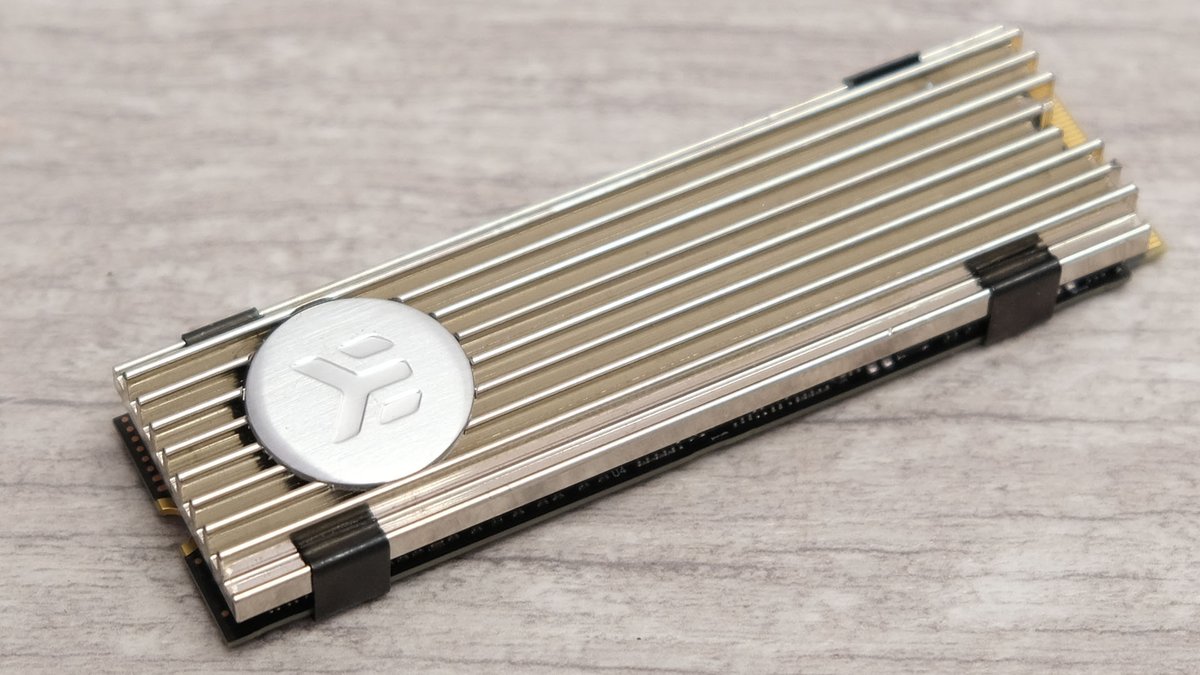
The whisper of speed in your PC build can sometimes turn into a silent scream of heat. Modern NVMe M.2 SSDs, especially those screaming-fast PCIe Gen 4 and Gen 5 drives, are engineering marvels, but their incredible performance comes with a trade-off: heat. Left unchecked, that heat can dramatically throttle your drive's speed, turning a lightning-fast component into a sluggish bottleneck. This often leads users to wonder if an SSD heatsink is the non-negotiable accessory it's made out to be. While essential for some, there are indeed scenarios where an SSD heatsink might be overkill, and understanding these can save you money, time, and unnecessary bulk in your system.
Let's cut to the chase and figure out if you truly need one.
At a Glance: Do You Need an SSD Heatsink?
- Definitely Need One: If you're running a PCIe Gen 4/5 NVMe SSD, especially for intense gaming, 4K video editing, or large, sustained file transfers. Also crucial for systems with poor airflow or specific devices like the PlayStation 5.
- Probably Don't Need One: If you're using a SATA SSD (M.2 or 2.5-inch), for general web browsing and office work, if your motherboard has an integrated M.2 heatsink, or if your PC case boasts excellent airflow.
- The Bottom Line: It's about your SSD's speed, your workload, and your PC's cooling capabilities.
The Silent Enemy: Why SSDs Get Hot and How Heatsinks Fight Back
Before we dive into overkill scenarios, it's vital to grasp why some SSDs run hot and what a heatsink actually does. Think of your SSD as a tiny, powerful engine. The faster it runs, the more energy it consumes, and a byproduct of that energy consumption is heat.
High-speed NVMe M.2 SSDs, particularly those leveraging the latest PCIe Gen 4.0 and Gen 5.0 interfaces, are built for mind-boggling data transfer rates—we're talking 7,000MB/s or more. To achieve this, their controllers and NAND flash chips work incredibly hard, generating substantial heat.
This is where an SSD heatsink steps in. It's a marvel of passive engineering: no fans, no power cables, just clever physics. A heatsink typically consists of a metal body (often aluminum for its lightweight effectiveness, or copper for superior heat transfer) with fins. It connects to the SSD's hot components via a thermal pad, which acts as a bridge. This pad efficiently transfers heat from the SSD to the heatsink's metal body. The fins then dramatically increase the surface area, allowing the air circulating within your PC case to absorb and dissipate that heat away from the drive. It's a simple, elegant solution to a growing problem. Some specialized drives, particularly for laptops, might even use thin graphene coatings for heat dispersion where bulkier metal isn't an option.
The Dreaded Throttle: When Heat Cripples Performance
Why bother with heat management? The primary reason is to prevent thermal throttling. This isn't just a fancy tech term; it's a built-in safety mechanism that kicks in when your SSD's temperature climbs too high, typically around 70°C (158°F) or above.
When an SSD throttles, its firmware automatically reduces the drive's operating speed. This deliberate slowdown is designed to lower heat generation and protect the drive from long-term damage. While protective, it means your ultra-fast SSD suddenly isn't so fast. You might experience stuttering in games, significantly slower file transfers, or frustrating delays in video rendering—essentially, your expensive drive can't sustain its advertised peak performance when it's running hot. A heatsink, by keeping temperatures in check, ensures your SSD can always deliver its full, unhindered speed.
When a Heatsink is Your SSD's Unsung Hero (The "Definitely Need" Scenarios)
For many users, especially those pushing their systems to the limit, an SSD heatsink isn't just a "nice-to-have"; it's a critical component for maintaining performance and ensuring longevity.
High-Performance NVMe M.2 SSDs (PCIe Gen 4.0 & Gen 5.0)
If you've invested in one of the latest, fastest NVMe SSDs, especially those boasting speeds of 7,000 MB/s or more (PCIe Gen 4.0) or the bleeding-edge PCIe Gen 5.0 drives, a heatsink is almost always recommended. These drives are designed for extreme throughput, and their controllers generate substantial heat under load. Without proper cooling, you're essentially paying for speed you might never consistently experience due to throttling.
Hardcore Gamers & Console Enthusiasts
For the serious gamer, every frame and millisecond counts. High-performance NVMe SSDs are often used as primary game drives, loading vast open worlds and complex textures. During long, intense gaming sessions, these drives can get quite warm. A heatsink ensures stable frame rates and prevents the frustrating stutters or slowdowns that can occur when an SSD thermally throttles.
- A Special Note for PlayStation 5 Owners: Sony specifically mandates the use of an M.2 SSD with an integrated heatsink (or an aftermarket one installed) for expanded storage. This is a clear indicator of the thermal demands placed on SSDs in high-performance console environments.
Content Creators & Power Users
If your workflow involves tasks that continuously hammer your SSD, a heatsink is non-negotiable. Video editors frequently write and read hundreds of gigabytes of 4K or 8K footage. 3D artists, animators, and photographers often deal with massive project files that require sustained, heavy loads. These scenarios cause rapid temperature spikes that can quickly lead to throttling, bringing your creative process to a grinding halt. A heatsink ensures your rendering, exporting, and processing speeds remain consistently high.
Systems with Suboptimal Airflow (e.g., Small Form Factor PCs)
The best heatsink in the world needs some airflow to dissipate heat. However, in compact PC cases (Small Form Factor or SFF builds) or systems with generally poor internal airflow, heat can become trapped. This exacerbates the SSD's thermal issues, making an aftermarket heatsink even more critical. It creates a larger surface area to radiate heat, helping it escape the confined space.
Users Performing Large, Sustained File Transfers
Regularly moving huge files—think multi-gigabyte video libraries, game installations, or database backups—pushes SSDs to their thermal limits. These sustained write operations are prime conditions for thermal throttling. If this describes your typical usage, a heatsink will be your best defense against performance drops.
Scenarios Where an SSD Heatsink Might Be Overkill
Now, let's zero in on the core question: when can you confidently skip the heatsink? Not every SSD or every user needs this extra cooling. Recognizing these situations can save you from an unnecessary purchase or a cluttered PC interior.
1. SATA SSDs (M.2 or 2.5-inch)
This is perhaps the clearest case where a heatsink is overkill. SATA SSDs, whether they come in the traditional 2.5-inch form factor or the M.2 stick format, operate on an older, slower interface. The SATA 3.0 standard is capped at theoretical speeds of around 600 MB/s, with real-world performance hovering closer to 560 MB/s.
Crucially, these lower speeds generate very little heat compared to their NVMe counterparts. The drive's standard casing or even just the bare M.2 PCB is more than sufficient for heat dissipation. Adding a bulky heatsink to a SATA SSD is like putting a spoiler on a bicycle – it adds weight and cost without any functional benefit.
2. General Everyday Use & Light Workloads
Are you primarily using your computer for web browsing, email, word processing, streaming videos, or light gaming? If your typical usage doesn't involve moving massive files constantly, running intensive applications for hours, or engaging in demanding creative work, your SSD rarely hits its maximum load.
In these scenarios, the SSD only operates at peak speeds for very brief bursts. It spends most of its time in idle or low-power states, generating minimal heat. While a heatsink might keep the drive a few degrees cooler, it won't prevent throttling that simply isn't going to happen. It's a "nice-to-have" luxury rather than a performance necessity.
3. Motherboards with Excellent Integrated Heatsinks
Many modern mid-to-high-end motherboards come equipped with integrated M.2 heatsinks. These are often sleek, metal covers (sometimes referred to as "armor" or "shields") that sit directly over the M.2 slots. They include pre-applied thermal pads that make direct contact with your NVMe SSD.
These integrated solutions are frequently quite effective, especially for PCIe Gen 3.0 and even many Gen 4.0 drives under moderate loads. If your motherboard has one of these, you likely don't need to buy an additional aftermarket heatsink. In fact, trying to install a separate heatsink would often mean removing the motherboard's solution, which could lead to compatibility issues or even poorer performance if the aftermarket one isn't superior. Always check if your motherboard already has this built-in cooling before buying another.
4. PCs with Exceptional Airflow
Even a high-performance NVMe SSD can run surprisingly cool without an additional heatsink if your PC case boasts truly exceptional airflow. Think large cases with multiple, well-placed intake and exhaust fans generating strong, positive air pressure.
In such an environment, the constant, brisk movement of air over the M.2 drive itself can be enough to dissipate heat effectively, especially under light to moderate workloads. The ambient temperature inside the case is kept low, and hot air is quickly expelled. While a heatsink still adds a layer of protection for sustained heavy loads, an excellently ventilated system might find it redundant for typical use cases. Consider your case size, fan configuration, and overall thermal management before assuming an external heatsink is mandatory.
Beyond the Basics: Practical Considerations and Nuances
Even if you're leaning towards not needing a heatsink, it's worth understanding a few more points.
Installation (When You Do Need One)
Should you decide a heatsink is necessary, installation is straightforward but critical for proper function:
- Prepare: Power down your PC, unplug it, and ground yourself to prevent static discharge.
- Unpack: Heatsinks usually include metal plates, thermal pads, and screws.
- Apply Thermal Pad: This is the most crucial step. Peel all protective plastic films from both sides of the thermal pad. Place the pad onto your SSD, ensuring it covers the controller and NAND chips. Leaving protective film on is a common mistake that traps heat instead of transferring it.
- Assemble: Carefully place the SSD with its thermal pad into the heatsink's base (if it's a two-piece design), then align the top plate.
- Secure: Use the provided screws to gently but firmly clamp the heatsink around the SSD. Avoid overtightening.
- Install: Slot the assembled SSD into your motherboard's M.2 slot and secure it with the motherboard's M.2 screw.
Lifespan vs. Performance: The Heatsink's True Role
A common misconception is that a heatsink makes your SSD "faster." This isn't quite right. A heatsink doesn't increase your SSD's raw speed; rather, it prevents it from slowing down. By keeping temperatures below the thermal throttling threshold, it allows the SSD to maintain its advertised maximum speed consistently.
Additionally, electronics tend to last longer when they run cooler. While modern SSDs are designed to withstand high temperatures for short periods, consistently operating at lower temperatures can reduce component wear, potentially extending the drive's overall lifespan. So, while not a speed booster, it's a performance preserver and a potential longevity enhancer.
Motherboard Clearance & Laptop Constraints
Most modern desktop motherboards with M.2 slots offer sufficient physical clearance for standard aftermarket heatsinks. However, it's always wise to double-check, especially if you have a bulky graphics card or other components that might obstruct the M.2 slot.
Laptops are an entirely different story. Their compact designs rarely accommodate bulky metal heatsinks. If you're upgrading an SSD in a laptop, look for drives that come with ultra-thin graphene labels (which act as a subtle heatsink) or check if your laptop chassis has its own built-in thermal pad designed to cool M.2 drives. Trying to force a desktop-style heatsink into a laptop will likely prevent the chassis from closing.
Yes, You Can Use an NVMe SSD Without a Heatsink
Ultimately, an NVMe SSD will function perfectly fine without a heatsink. Its internal firmware will manage temperatures through thermal throttling. The key takeaway is that this throttling only becomes a concern under sustained, heavy workloads. For the vast majority of users, engaged in typical daily computing, the drive will perform adequately without additional cooling. It's about optimizing performance for demanding tasks, not enabling basic functionality.
Making the Right Call for Your Setup
Deciding whether an SSD heatsink is a worthwhile investment boils down to a few key questions:
- What SSD do you have? If it's a SATA drive, you absolutely do not need one. If it's a high-speed PCIe Gen 4 or Gen 5 NVMe drive, lean towards yes.
- What's your primary use case? Are you a gamer, content creator, or constantly moving large files? If so, a heatsink is highly recommended. For casual use, it's likely overkill.
- Does your motherboard already have one? If your motherboard has integrated M.2 heatsinks, they're often sufficient.
- How good is your PC's airflow? Excellent case airflow can sometimes mitigate the need for an aftermarket heatsink, but it's less reliable for sustained heavy loads.
An SSD heatsink is a small, relatively affordable component that offers significant benefits for specific use cases. For modern, high-speed NVMe M.2 SSDs, especially for power users, gamers, and content creators, it’s a resounding YES to ensure maximum, consistent performance and protect your investment. However, for SATA drives, general office use, or systems with existing robust cooling solutions, it's generally not necessary. Evaluate your unique workload, PC airflow, and existing motherboard features before making a purchase, and you'll equip your system perfectly without overdoing it.