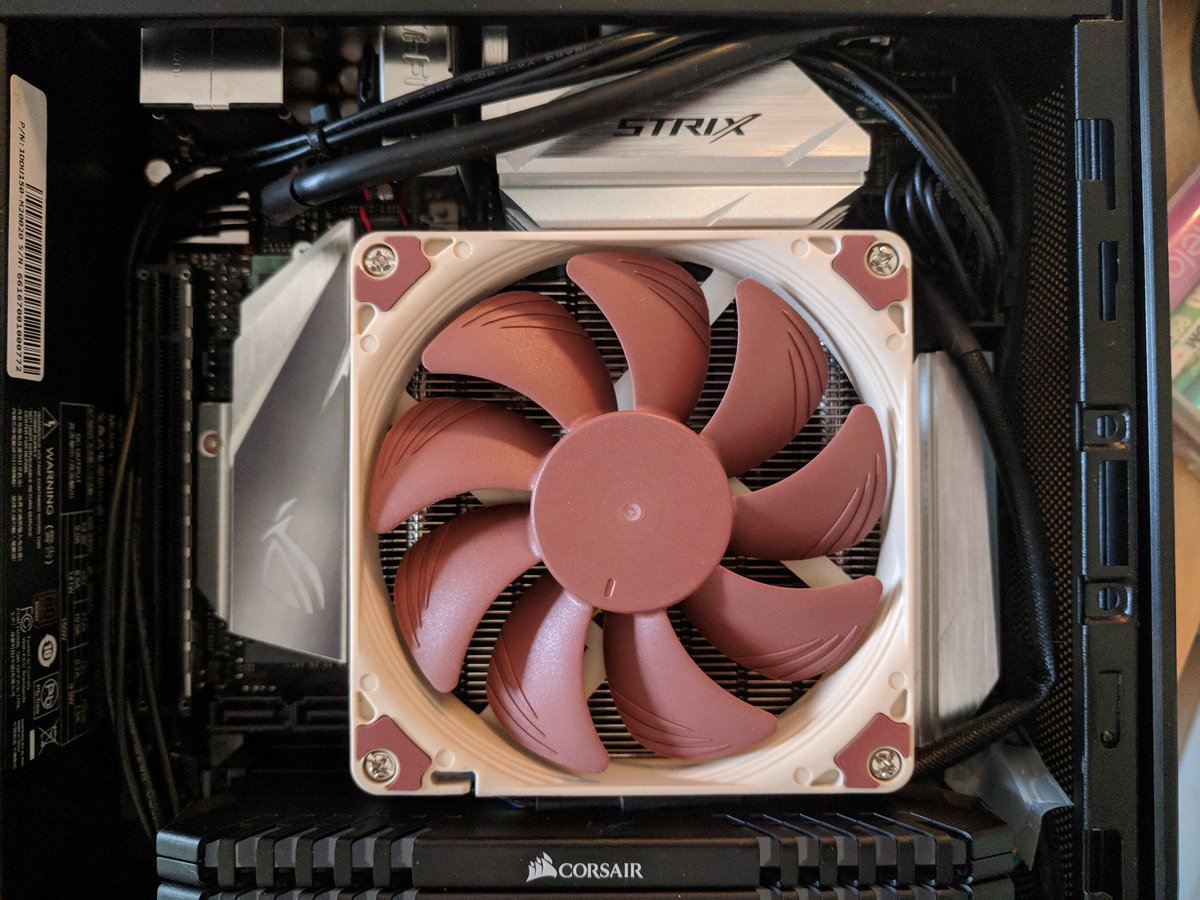
Choosing the right cooling solution for your PC's components is a subtle art, especially when it comes to high-performance storage. The debate between using motherboard integrated heatsinks vs. aftermarket options for your NVMe SSDs often boils down to performance needs, budget, and aesthetics. While your motherboard likely comes with a sleek, pre-installed heatsink for its M.2 slots, are these built-in solutions truly enough, or should you invest in something more robust from the aftermarket? Let's dive into the core of SSD and chipset cooling to help you make an informed decision.
At a Glance: What You Need to Know
- Integrated SSD Heatsinks Are Often Enough: For most users and light to moderate workloads (gaming, web browsing, Adobe apps), the heatsinks included on your motherboard are generally adequate for NVMe SSDs.
- SSDs Don't Always Run Hot: Under normal use, NVMe SSDs typically don't generate extreme heat, making extensive cooling overkill for many setups.
- Chipset Cooling is Critical: Beyond your SSD, your motherboard's chipset also generates significant heat, which can lead to performance issues if not managed correctly. This is where the fan vs. heatsink debate truly plays out.
- Aftermarket Options Offer More: If you're pushing your SSD with sustained heavy loads (e.g., large file transfers, video editing), an aftermarket SSD heatsink can provide superior thermal performance.
- Budget vs. Performance: Sometimes, opting for a slightly less expensive motherboard and adding an affordable aftermarket SSD heatsink later offers a better performance-to-cost ratio than paying a premium for a motherboard with oversized integrated heatsinks.
The Heat Beneath: Why Cooling Matters for Your SSD and Chipset
Before we compare cooling methods, it’s crucial to understand why we even need to cool these components in the first place. Heat is the enemy of electronics, and both your high-speed NVMe SSDs and the motherboard's core chipset are significant heat generators.
Your NVMe SSD: A Speed Demon That Can Get Warm
NVMe (Non-Volatile Memory Express) SSDs are incredibly fast, offering transfer speeds far beyond traditional SATA drives. This speed, however, comes with a trade-off: heat. When an SSD works hard—transferring large files, running intensive applications, or under sustained heavy loads—its controller and NAND flash chips generate heat. If this heat isn't dissipated effectively, the SSD can "throttle" itself, meaning it deliberately slows down its operations to prevent overheating and potential damage. This performance reduction defeats the purpose of buying a super-fast drive in the first place.
For typical day-to-day tasks like web browsing, light gaming, and using productivity applications (even some Adobe suites), your NVMe SSD likely won't hit temperatures high enough to cause significant throttling. But for tasks like transferring hundreds of gigabytes, compiling massive code, or continuous video editing, keeping that drive cool becomes a real concern.
The Motherboard Chipset: The Unsung Heat Generator
Often overlooked in the cooling discussion, the motherboard chipset is a vital communication hub. It manages data flow between your CPU, memory, storage devices, and expansion cards. Think of it as the traffic controller of your PC's data highways. Because it's constantly working to coordinate these high-speed exchanges, the chipset generates a fair amount of heat.
Unmanaged chipset heat isn't just a comfort issue; it can lead to:
- Performance Degradation: Slowdowns as the chipset struggles to maintain optimal operation.
- Instability: System crashes, freezes, or unpredictable behavior.
- Throttling: Like SSDs, chipsets can reduce their performance to cool down.
- Damage: In extreme, prolonged cases, excessive heat can shorten component lifespan.
Ensuring proper chipset cooling is just as important, if not more so, than cooling individual components like SSDs for overall system stability and longevity.
Integrated Motherboard Heatsinks: The Built-In Convenience
Most modern mid-to-high-end motherboards come equipped with integrated heatsinks for their M.2 slots and chipsets. These are often sleek, aesthetically pleasing pieces of metal (usually aluminum) designed to blend seamlessly with the motherboard's design.
What Are They?
Integrated heatsinks are exactly what they sound like: metal plates, often with fins or grooves, that are pre-installed on the motherboard. For M.2 SSDs, they typically sit directly on top of the installed NVMe drive, using a thermal pad to conduct heat away from the SSD controller and flash chips. For the chipset, a larger, often more elaborate heatsink assembly is strategically placed over the chipset itself.
The Pros: Convenience, Aesthetics, and "Good Enough" Performance
- Seamless Aesthetics: Let's be honest, they look good. Integrated heatsinks are designed to match your motherboard's color scheme and overall design, contributing to a clean, unified build.
- Zero Installation Hassle (for SSDs): For M.2 slots, you simply install your SSD, peel off the protective film from the pre-attached thermal pad, and secure the heatsink. It's often easier than installing a separate aftermarket unit.
- Cost-Effective (in some cases): While motherboards with more robust integrated cooling might cost more upfront, you're not buying separate components. For many, this combined cost is appealing.
- Adequate for Most Users: As mentioned, for light to moderate workloads, the thermal dissipation provided by motherboard-integrated SSD heatsinks is generally sufficient to prevent throttling.
- Passive Chipset Cooling: The chipset heatsink provides reliable, silent, passive cooling, requiring no power or moving parts.
The Cons: Limited Performance, Bulk, and "Good Enough" Sometimes Isn't Enough
- Limited Thermal Performance: While adequate, integrated heatsinks rarely offer the same cooling efficiency as larger, dedicated aftermarket solutions. Their design is often constrained by motherboard layout and aesthetic considerations, limiting their surface area and fin density.
- Motherboard-Specific Design: You're stuck with whatever the motherboard manufacturer provides. If it's a weak design, you have no easy upgrade path without replacing the entire board or trying to jerry-rig an aftermarket solution.
- Potential for Bulk (Chipset): While some integrated chipset heatsinks are sleek, others, especially those paired with heat pipes or larger fin arrays, can be quite bulky, potentially interfering with larger GPU coolers or expansion cards.
- Chipset Passive Limitations: While reliable, passive chipset heatsinks may struggle under very heavy loads or in systems with poor case airflow. For high-performance chipsets or intense gaming, this passive cooling alone might not be sufficient.
Aftermarket SSD Heatsinks: Stepping Up Your Cooling Game
When integrated solutions don't cut it, or if you simply want the best possible thermal performance for your NVMe SSD, aftermarket heatsinks are your go-to. These are standalone cooling devices designed specifically for M.2 drives.
What Are They?
Aftermarket SSD heatsinks come in various shapes and sizes, from simple aluminum blocks with fins to elaborate designs featuring heat pipes, multiple fin stacks, and even tiny active fans. They usually attach to your SSD via thermal pads and small clips or screws.
The Pros: Superior Performance, Flexibility, and Peace of Mind
- Enhanced Thermal Performance: This is their primary advantage. Aftermarket heatsinks generally boast larger surface areas, more complex fin designs, and sometimes heat pipes, allowing for significantly better heat dissipation compared to integrated options. This means less throttling and more consistent high performance from your SSD.
- Future-Proofing: If you upgrade your SSD to an even faster, hotter-running model in the future, a robust aftermarket heatsink ensures you're prepared.
- Flexibility and Choice: You can choose a heatsink that perfectly fits your aesthetic preferences, budget, and specific performance needs. Need maximum cooling? Go for a chunky, finned monster. Prefer a subtle look? There are slim options too.
- Potentially More Cost-Effective: As our ground truth research suggests, sometimes a cheaper motherboard plus a dedicated, affordable M.2 heatsink can offer a better value proposition than a premium motherboard with an oversized, but ultimately still integrated, solution.
- Specific Problem Solving: If you've identified your SSD as a thermal bottleneck, an aftermarket heatsink is a direct and effective solution.
The Cons: Added Cost, Installation, and Potential Clearance Issues
- Added Cost: This is the most obvious drawback. You're paying extra for a component that your motherboard might already have a version of.
- Installation Effort: While generally straightforward, installing an aftermarket heatsink requires a bit more effort than using an integrated one. You'll often need to secure clips or screws, and sometimes deal with multiple thermal pads.
- Clearance Issues: Larger aftermarket heatsinks, especially those with tall fin stacks or fans, can sometimes interfere with large graphics cards, CPU coolers, or other expansion cards depending on your motherboard layout and case. Always check dimensions!
- Aesthetics May Not Match: Unless carefully chosen, an aftermarket heatsink might not perfectly match your motherboard's aesthetic, which can be a concern for some builders.
The Chipset Conundrum: Active vs. Passive Cooling
While SSD cooling gets a lot of attention, the cooling strategy for your motherboard's chipset is equally, if not more, critical for overall system health. Here, the choice is fundamentally between passive (heatsinks) and active (fans) cooling.
Passive Cooling: The Silent Watchman (Heat Sinks)
Most modern motherboards utilize passive heatsinks for their chipsets. These are typically robust metal blocks, often integrated into the motherboard's aesthetic armor.
- Pros:
- Silent: No moving parts means absolutely no noise. Ideal for quiet builds.
- Reliable: No mechanical parts to fail, leading to excellent long-term reliability.
- Low Maintenance: Virtually dust-free and requires no ongoing attention.
- Space-Saving (often): While they can be bulky, they don't require the same kind of clearance as a fan might for airflow.
- Energy-Efficient: No power draw.
- Cons:
- Less Effective Under Heavy Loads: Passive cooling relies on ambient airflow and convection. In systems with poor internal airflow or during intense, sustained tasks, a passive heatsink alone might struggle to keep the chipset optimally cool.
- Confined Spaces: If the chipset is in a cramped area with limited airflow, its effectiveness is reduced.
- Not Always Sufficient for High-Performance Chipsets: More demanding chipsets might generate too much heat for a purely passive solution to handle efficiently.
Active Cooling: The Workhorse (Fans)
Some motherboards, particularly high-end gaming or enthusiast models, incorporate small fans directly onto the chipset heatsink. This provides active airflow to boost cooling performance.
- Pros:
- Efficient and Immediate Cooling: Fans actively blow air over the heatsink, vastly improving heat dissipation, especially under heavy loads.
- Effective for Intensive Tasks: Ideal for gamers, content creators, or anyone pushing their system to its limits, ensuring the chipset stays cool even during peak usage.
- Enhanced Airflow: Contributes to overall case airflow, potentially helping other components too.
- Compact Design: The fans themselves are usually very small.
- Adjustable Speed: Modern BIOS settings often allow you to control fan curves, balancing noise and performance.
- Cons:
- Noise: Small fans, especially when spinning fast, can be noticeable and irritating.
- Maintenance Required: Fans accumulate dust and can eventually fail. Regular cleaning is necessary.
- Clearance Needed: Although small, they still need space to draw and expel air.
- Power Consumption: Though minimal, they draw power from the motherboard.
- Potential for Failure: Being mechanical, fans are a point of failure, however rare.
Making the Choice for Chipset Cooling
The decision between active and passive chipset cooling hinges on your specific use case and preferences:
- For the Quiet, Reliable System: If noise is a primary concern, and your workloads are mostly moderate, a motherboard with a robust passive chipset heatsink is ideal.
- For the Performance-Driven Enthusiast: If you frequently engage in heavy gaming, intensive rendering, or other resource-intensive applications, or simply prioritize maximum thermal headroom, active chipset cooling might be a better fit.
- Consider a Hybrid Approach: For systems generating significant heat, sometimes a combination of a substantial passive heatsink and good overall case airflow (which actively cools everything) can be the best solution.
Making the Call: Integrated vs. Aftermarket for Your SSD
Now that we’ve explored the ins and outs of both options and the broader context of chipset cooling, let’s get down to the practical decision-making for your NVMe SSD.
When Motherboard Integrated Heatsinks Are Just Fine
- Budget-Conscious Builds: If every dollar counts, using what's already provided is a no-brainer.
- Light to Moderate Workloads: For everyday computing, gaming (unless you're constantly loading huge textures), and general productivity, integrated heatsinks will likely prevent thermal throttling.
- Aesthetics Priority: If a clean, unified look is paramount and you're not pushing performance to the absolute bleeding edge, integrated solutions are hard to beat.
- Space Constraints: If your build is already tight, avoiding the bulk of a large aftermarket heatsink can be beneficial.
- Entry to Mid-Range SSDs: These drives typically generate less heat than their high-end counterparts, making integrated cooling more effective.
Example Scenario: You're building a gaming PC with an MSI B650M Gaming Plus Wifi and an NVMe SSD like a Crucial P5 Plus. The motherboard's integrated M.2 heatsink will almost certainly be sufficient for typical gaming sessions and general use. Spending an extra $80 on a motherboard with a marginally larger integrated heatsink, or even an aftermarket solution, would likely be overkill.
When Aftermarket Heatsinks Shine
- Heavy Workloads and Sustained Transfers: If you're constantly moving large files (e.g., video editing, CAD, large data analytics), compiling code, or running highly disk-intensive applications, an aftermarket heatsink will help maintain peak SSD performance.
- High-Performance / High-Heat SSDs: Top-tier NVMe SSDs (like PCIe Gen 4 or Gen 5 drives) can generate substantial heat. An aftermarket cooler is often a wise investment here.
- Overclocking (SSD Controller): While less common, if you're pushing your SSD's controller in any way, superior cooling is essential.
- Seeking Maximum Performance and Longevity: For enthusiasts who want every ounce of performance and peace of mind regarding component longevity, an aftermarket solution is a natural choice.
- Overheating Concerns: If you've monitored your SSD and found it's frequently hitting high temperatures or throttling, an aftermarket heatsink is a direct solution.
- Strategic Budgeting: If you find a great deal on a motherboard that lacks robust integrated M.2 cooling, you can offset this by buying a high-performance SSD and an aftermarket heatsink, sometimes for less than a premium motherboard with built-in cooling.
Example Scenario: You're a professional video editor using a PCIe Gen 5 SSD for your scratch disk, constantly working with massive 4K footage. Investing in a high-performance aftermarket M.2 heatsink (perhaps one with a small fan) ensures your SSD doesn't throttle during crucial render times, saving you valuable minutes or hours.
Decision Criteria: Your Personal Checklist
To choose the right cooling method for your specific setup, consider these points:
- Workload Intensity: Are you a light user or a power user?
- SSD Type: Is it a Gen 3, Gen 4, or Gen 5 NVMe drive? Newer generations run hotter.
- Budget: How much are you willing to spend on cooling?
- Aesthetics: Do you prefer a clean integrated look or are you open to an aftermarket addition?
- Clearance: Do you have enough space around your M.2 slots for a potentially bulky aftermarket heatsink? (Consider large GPUs or CPU air coolers).
- Noise Tolerance: Is absolute silence critical, or can you tolerate a small chipset fan?
- Motherboard Quality: Does your motherboard already come with robust integrated heatsinks, or are they minimal?
- Thermal Monitoring: If you already have your PC built, monitor your SSD temperatures under load. This empirical data is invaluable.
Installation & Best Practices for SSD Cooling
Regardless of whether you go integrated or aftermarket, a few best practices ensure optimal cooling.
Getting It Right: Installation Tips
- Cleanliness is Key: Ensure both your SSD and the heatsink's contact surface are free of dust or fingerprints before applying thermal pads.
- Thermal Pad Placement: Make sure the thermal pad covers the SSD's controller chip and ideally the NAND flash chips as well. Some SSDs have components on both sides, so ensure your heatsink (or its thermal pads) can make contact with both if designed to do so.
- Firm, Even Pressure: When securing the heatsink, apply firm, even pressure to ensure good contact between the thermal pad and the SSD. Don't overtighten screws.
- Check Orientation: Some aftermarket heatsinks are directional regarding airflow. Pay attention to any arrows or instructions.
- Clearance Check: Always double-check that your installed heatsink doesn't interfere with your graphics card, other PCIe devices, or your CPU cooler.
Optimizing Overall System Airflow
No heatsink, integrated or aftermarket, can work in isolation. The overall airflow within your PC case plays a massive role in how effectively heat is dissipated.
- Intake and Exhaust Balance: Aim for a balanced number of intake fans (pushing cool air in) and exhaust fans (pulling hot air out).
- Positive Pressure: Slightly more intake than exhaust can create positive pressure, which helps keep dust out and ensures fresh air reaches components.
- Unobstructed Paths: Ensure cables aren't blocking airflow channels to your SSDs or chipset.
- Case Choice: A case with good ventilation and plenty of fan mounting options will always yield better thermal results than a solid-front case.
Common Misconceptions About SSD and Chipset Cooling
Let's clear up a few myths and misunderstandings.
Myth 1: All NVMe SSDs need a high-end aftermarket heatsink.
Reality: Not true. For most users, especially with Gen 3 or even some Gen 4 drives under typical workloads, the motherboard's integrated heatsink (or even no heatsink for very light use) is perfectly fine. It's high-end, sustained workloads that truly benefit.
Myth 2: My PC will explode if my SSD runs hot.
Reality: Modern SSDs have built-in thermal protection. If they get too hot, they'll throttle performance before reaching critical temperatures that could cause damage. While throttling is undesirable, it's a safety mechanism, not a sign of impending doom.
Myth 3: Bigger heatsink always means proportionally better cooling.
Reality: While surface area helps, it's a combination of material, fin design, thermal pad quality, and ambient airflow that determines overall effectiveness. Diminishing returns kick in at some point.
Myth 4: Chipset fans are always noisy.
Reality: While some older or cheaper implementations can be loud, many modern chipset fans are small, temperature-controlled, and can be very quiet, often barely audible above other system fans. You can often adjust their fan curve in the BIOS.
Your Next Steps: Making the Smart Choice
You now have a solid understanding of motherboard integrated heatsinks vs. aftermarket options for your SSDs, and the critical role of chipset cooling. The "best" solution isn't universal; it's the one that best matches your specific needs, budget, and system.
Before you make a purchase:
- Assess Your Workload: Be honest about how you'll use your PC. If it's mostly gaming and browsing, don't overspend on extreme cooling.
- Research Motherboard Reviews: Look for reviews that specifically test the effectiveness of a motherboard's integrated M.2 and chipset cooling solutions.
- Consider Your SSD Choice: A blazing-fast Gen 5 SSD will benefit more from robust cooling than an older Gen 3 drive.
- Check Your Case Airflow: A well-ventilated case with optimized fan placement can make a significant difference for both SSDs and chipsets, sometimes negating the need for more elaborate individual component cooling.
- Monitor Your Temperatures: If your system is already built, use software like HWMonitor or CrystalDiskInfo to track your SSD and chipset temperatures under various loads. Data-driven decisions are always the best.
Ultimately, whether you stick with the integrated solution or opt for an aftermarket upgrade, the goal is consistent, reliable performance and the longevity of your components. Make an informed choice, build with confidence, and enjoy a cool, stable system.