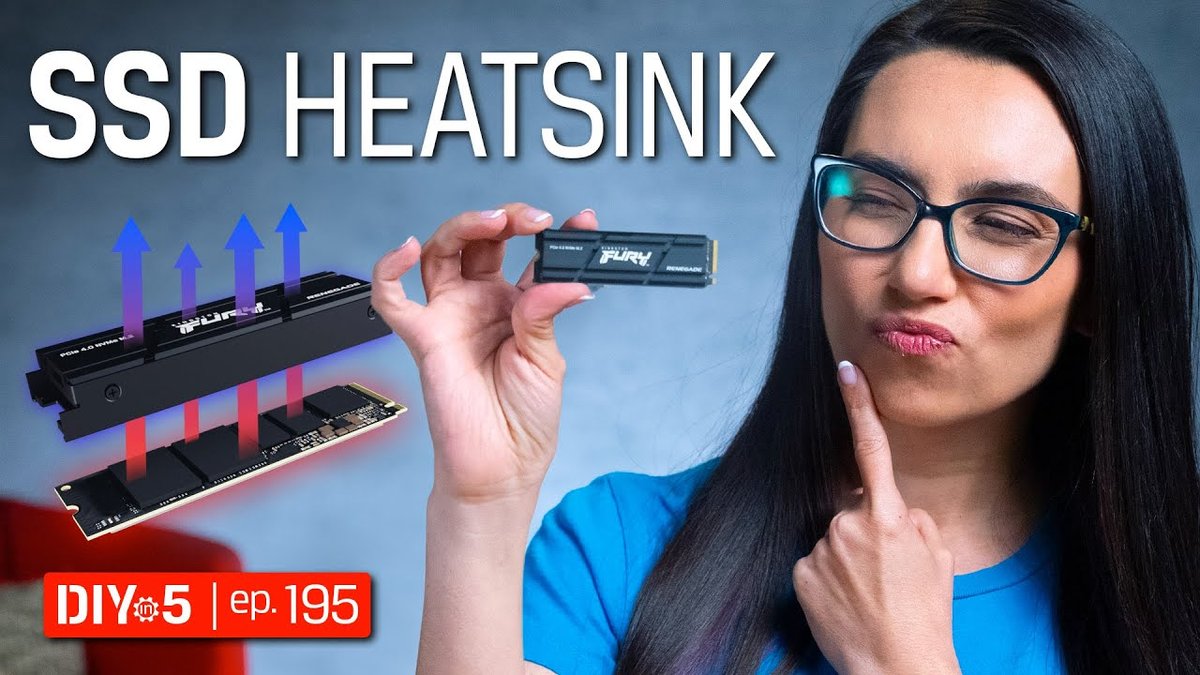
Modern M.2 NVMe SSDs are speed demons, especially the latest PCIe Gen4 and Gen5 variants, but that raw power comes with a fiery challenge: heat. If you've ever noticed your super-fast drive suddenly feeling sluggish during a big file transfer or intense gaming session, you've likely encountered thermal throttling—the SSD's self-preservation mechanism kicking in to avoid overheating. This isn't just an annoyance; it's a performance bottleneck that can dramatically cut speeds and even shorten your drive's lifespan. That's where a properly chosen and installed SSD heatsink becomes not just a luxury, but an essential component.
This guide will walk you through everything you need to know about SSD heatsinks, from understanding their critical role to selecting the perfect one and installing it with confidence.
At a Glance: Why SSD Heatsinks Matter
- Cooling Power: Reduces SSD operating temperatures by up to 20°C.
- Performance Stability: Prevents thermal throttling, maintaining consistent high speeds.
- Longevity: Extends the lifespan of your expensive NVMe drive by reducing thermal stress.
- Data Integrity: Minimizes the risk of data corruption linked to overheating.
- Cost-Effective: Often a simple, affordable upgrade with significant benefits.
- Essential for: PCIe Gen4/Gen5 drives, high-performance tasks, and compact systems.
The Silent Threat: Why Modern SSDs Run Hot
Think of your NVMe SSD as a tiny, high-performance engine. The faster it goes (especially Gen4 drives with 7,000 MB/s reads and Gen5 pushing 14,000 MB/s), the more power it consumes, and consequently, the more heat it generates. This heat primarily comes from the NAND flash chips and the SSD controller.
Under sustained heavy workloads—like editing 4K video, running multiple virtual machines, or installing massive game files—these temperatures can quickly climb past 80°C. When an SSD gets too hot, its internal firmware triggers thermal throttling, drastically reducing read and write speeds, sometimes by as much as 60% for uncooled Gen4 drives. Imagine buying a supercar only to have it drive like a minivan during peak performance! A good heatsink acts like the radiator for this tiny engine, silently pulling heat away and ensuring it can perform at its peak, consistently.
Decoding the Need: When Your SSD Cries for Cooling
Not every SSD needs a heatsink. For basic office tasks, web browsing, or occasional light use, the heat generated rarely reaches critical levels. However, certain scenarios and hardware configurations make an SSD heatsink an absolute necessity:
- High-Performance Desktop Builds: If you're running a powerful gaming rig or a workstation with a PCIe Gen4 or Gen5 NVMe drive, especially when pushing large files or intensive applications.
- Gaming Laptops & Mini PCs: Compact systems often have limited airflow, making heat dissipation a major challenge for internal components. An SSD heatsink can be a game-changer here.
- Embedded Systems & Compact/Silent PCs: Any build where active cooling (fans) is minimal or non-existent will benefit greatly from passive heatsink cooling.
- Intensive Applications: Regularly engaged in video editing, 3D rendering, large-scale software development, or virtual machine hosting? Your Gen4/Gen5 drive is working hard and getting hot.
- Signs You Need One:
- Performance Drops: Noticeable slowdowns during heavy read/write operations.
- High Reported Temperatures: Monitoring software (like HWMonitor, CrystalDiskInfo, or your motherboard's utility) shows temperatures consistently above 70°C under load.
- Data Corruption Errors: While less common, extreme and prolonged heat can contribute to stability issues.
If you're unsure about your drive's performance, regularly monitoring its temperature can offer valuable insights. Consider checking out essential tools for monitoring PC performance to keep an eye on your SSD's health and temperature alongside other crucial components.
The Compatibility Conundrum: Matching Heatsink to SSD & System
Before you buy, measure twice and check specifications once. Compatibility is king when it comes to SSD heatsinks.
- SSD Form Factor: The vast majority of NVMe SSDs are M.2 2280, meaning they are 22mm wide and 80mm long. Most heatsinks are designed for this standard. Always confirm your SSD's specific form factor, although deviations are rare for consumer drives.
- Motherboard & Enclosure Clearance: This is the most critical hurdle.
- Desktops: Check for clearance around the M.2 slot. Does your graphics card sit very close? Are there large CPU coolers, RAM modules, or other components that might interfere with the heatsink's height or width? Some motherboard-integrated heatsinks are low-profile by design, but aftermarket options can vary.
- Laptops & Mini PCs: Space is extremely limited. You’ll need a "low-profile" heatsink, and even then, some laptops might not accommodate any aftermarket solution. Measure the available space between your M.2 slot and the laptop's chassis or other internal components with extreme precision.
- Measuring Up: Physically measure your SSD's dimensions, then compare them against the heatsink's specifications (width, length, and especially height). Remember to account for the thickness of the thermal pads!
Anatomy of an Effective Heatsink: What to Look For
Choosing the right heatsink isn't just about looks; it's about intelligent engineering.
- Materials Matter: Aluminum Alloy Dominance
- Most effective heatsinks are made from extruded aluminum. This material offers an excellent balance of thermal conductivity (how well it transfers heat), weight, and cost-efficiency.
- While copper has superior thermal conductivity, it's heavier and more expensive, so it's less common for SSD heatsinks unless part of a high-end, integrated solution.
- Look for designs with ample fin surface area, as this increases the amount of heat that can be dissipated into the surrounding air.
- Thermal Interface Material (TIM): The Crucial Link
- The TIM is what bridges the microscopic gaps between your SSD's chips and the heatsink. Without it, heat transfer would be abysmal.
- Thermal Pads: Almost all standalone SSD heatsinks come with thermal pads. Ensure these pads are at least 1.5mm thick to make solid contact with both the NAND chips and the controller, which can vary slightly in height. Thicker pads conform better to uneven surfaces.
- Pre-Applied vs. Separate: Many heatsinks have pre-applied pads, simplifying installation. If they're separate, ensure you apply them carefully.
- Thermal Paste: Generally, additional thermal paste is not needed or recommended for SSD heatsinks. Thermal pads are designed for this application, providing both thermal conductivity and cushioning. Only use paste if the heatsink specifically states it's required and designed for it.
- Design Types: Form Follows Function
- Universal Clip-On: These attach to the SSD using spring-loaded clips or rubber bands, requiring no screws. They're quick to install and ideal when you have limited access to the M.2 mounting screw or prefer a tool-less solution. Ensure the clips provide firm, even pressure.
- Screw-Mounted: These are secured by screws, often utilizing the SSD's existing mounting hole on the motherboard. They offer superior, consistent contact and stability, generally providing better cooling performance. Most high-quality aftermarket heatsinks fall into this category.
- Motherboard-Integrated: Many modern motherboards (especially mid-to-high end) come with heatsinks built directly into the M.2 slot. These are often aesthetically matched to the motherboard and pre-engineered for clearance. If your motherboard has one, you might not need an aftermarket heatsink, but check its effectiveness via temperature monitoring.
- Active Cooling: Rare for SSDs, these heatsinks incorporate tiny fans for forced airflow. While effective, they add noise and another potential point of failure. Reserved for extreme overclocking or very specific use cases.
- Low-Profile: Specifically designed for slim devices like SFF (Small Form Factor) PCs or certain laptops where vertical clearance is at a premium. These often have fewer fins but prioritize a compact footprint.
- Cost vs. Value:
- Standalone SSD heatsinks are remarkably affordable, typically ranging from $8 to $25. This small investment yields significant performance and longevity benefits.
- Some high-performance SSDs, like certain Samsung 980 Pro or WD Black SN850X models, come bundled with a heatsink pre-installed. These "with Heatsink" editions usually add only $10-$20 to the base price, offering convenience and guaranteed compatibility.
- When considering price, think about the value. A $15 heatsink protecting a $100-$300 SSD is a wise investment.
- Purchase Advice: Buy Smart
- Stick to reputable retailers like Amazon, Newegg, Best Buy, or directly from the brand's website.
- Look for well-known brands in PC cooling, such as Thermalright, ARCTIC, Sabrent, or EKWB. These brands have a track record of quality.
- For bulk purchases or specialized needs, consider distributors like Ingram Micro or Digi-Key.
- Always verify seller authenticity on marketplaces and check product reviews for consistent feedback on performance and ease of installation.
Step-by-Step Installation: A Confident Setup
Installing an SSD heatsink is a straightforward process, but precision and care are key.
Tools You'll Need:
- Small Philips head screwdriver (often PH0 or PH1, check your motherboard manual for the M.2 screw size)
- Anti-static wrist strap (recommended)
- Compressed air or lint-free cloth
- The SSD heatsink with its thermal pads
- Your M.2 NVMe SSD
Pre-Installation Checklist:
- Power Down: Completely shut down your PC and unplug it from the wall.
- Open Case: Open your computer case to access the motherboard.
- Locate M.2 Slot: Identify the M.2 slot where your SSD is installed (or will be installed).
- Assess Clearance: Double-check that there's enough physical space for the heatsink once installed, particularly with your GPU or CPU cooler.
The Installation Process:
Step 1: Remove Existing SSD (If Applicable)
- If your SSD is already installed, carefully unscrew the small M.2 mounting screw at the end of the SSD.
- The SSD will typically pop up slightly. Gently slide it out of the slot.
- If there's an existing motherboard-integrated heatsink, remove it by unscrewing its mounting screws.
Step 2: Prepare the SSD - Clean the SSD: Use compressed air or a lint-free cloth to gently clean the surface of your SSD, ensuring no dust or fingerprints are present where the thermal pads will make contact. This optimizes heat transfer.
- Warranty Warning: Be aware that removing factory-installed labels on some SSDs (like the one covering the controller chip) may void the manufacturer's warranty. Check your SSD manufacturer's policy if concerned. Many modern SSDs are designed to have heatsinks applied over these labels, as long as the labels are thin and don't create an air gap.
Step 3: Apply Thermal Pads - Most heatsinks come with two thermal pads: one for the top of the SSD (NAND chips, controller) and sometimes a thinner one for the bottom (if the heatsink also covers the underside).
- Carefully peel off the protective films from both sides of the thermal pad(s).
- Align the main thermal pad over the top surface of your SSD, covering the NAND flash chips and the controller. Press gently to ensure good contact without squeezing.
- If your heatsink has a backplate or a second pad for the underside, apply that pad to the back of the SSD or the backplate, following the heatsink's instructions.
Step 4: Mount the Heatsink to the SSD - For Screw-Mounted Heatsinks:
- Place the heatsink directly onto the SSD, ensuring the thermal pad makes full, even contact across the entire surface.
- Align any mounting holes on the heatsink with the SSD's mounting holes (if applicable) or the heatsink's own mounting mechanism.
- Secure the heatsink to the SSD using the screws provided with the heatsink. Tighten gently but firmly, applying even pressure to ensure optimal contact with the thermal pads. Avoid over-tightening.
- For Universal Clip-On Heatsinks:
- Position the heatsink over the SSD.
- Carefully attach the spring-loaded clips or rubber bands, ensuring they securely hold the heatsink onto the SSD with even pressure. Make sure the clips don't touch any sensitive components on the SSD or motherboard.
Step 5: Reinstall SSD into Motherboard - Carefully slide the SSD (now with the heatsink attached) back into the M.2 slot on your motherboard. It will likely sit at a slight angle.
- Once fully inserted, gently push the SSD down until it's parallel with the motherboard.
- Re-insert and tighten the small M.2 mounting screw at the end of the slot to secure the SSD in place. Do not over-tighten.
Step 6: Final Checks - Double-check all connections and ensure no wires are obstructing fans or components.
- Close your PC case.
- Plug your PC back in and power it on.
- Once booted into your operating system, use a monitoring tool (like HWMonitor, CrystalDiskInfo, or your motherboard's utility) to verify that your SSD is recognized and to monitor its operating temperature. A quick check of your essential BIOS settings for optimized performance might also reveal temperature readings.
Keeping Cool: Maintenance and Safety Best Practices
An SSD heatsink is largely a "set it and forget it" component, but a little periodic care goes a long way.
- Thermal Pad Inspection: Over years, thermal pads can harden, crack, or lose effectiveness. Periodically, especially if you notice rising temperatures, inspect the pads. If they show signs of degradation, replace them with high-quality thermal pads of the same thickness.
- Dust Control: Heatsinks, like any other cooling component, can accumulate dust. Use compressed air to carefully blow away dust buildup from the heatsink fins every few months. Avoid liquid cleaners, as moisture can damage electronics.
- Prevent Short Circuits: Always ensure the heatsink, especially any metal components or clips, does not come into contact with exposed solder points, traces, or other sensitive electrical components on your SSD or motherboard. This is rare with well-designed products but always worth a visual check.
- Never Force It: If the heatsink doesn't fit easily, do not force it. Re-evaluate your measurements and the heatsink's design. Forcing it can damage your SSD, motherboard, or the heatsink itself.
- Monitor SSD Temperature: Make it a habit to periodically monitor your SSD's temperature, especially under load. This allows you to catch any potential issues early. Your system's BIOS/UEFI often displays initial temperatures, and software like HWMonitor, CrystalDiskInfo, or the SSD manufacturer's utility (e.g., Samsung Magician) provides real-time data within your OS. For a deeper dive into optimizing your system, learning how to safely overclock your CPU also involves careful temperature management across all components.
- Firmware Updates: While not directly related to the heatsink, ensure your SSD firmware is up to date, as manufacturers sometimes release updates that improve thermal management or reporting.
Making the Smart Choice: Your Heatsink Decision Matrix
For the vast majority of users with modern PCIe Gen4 or Gen5 NVMe drives, a screw-mounted aluminum heatsink with at least 1.5mm thick thermal pads represents the ideal blend of cost-efficiency, effective cooling, and reliable stability. It's a silent guardian that allows your SSD to perform at its peak without thermal interruptions.
While not every system necessitates one, a quality heatsink offers tangible benefits in sustained performance, reduced risk of data corruption, and prolonged drive longevity. It's a small investment that pays significant dividends for any enthusiast, gamer, or professional pushing their high-speed storage to its limits. Embrace the cool, confident performance your SSD was designed to deliver. And for those keen on maximizing system efficiency, understanding how to optimize power settings for gaming can further complement your SSD's enhanced thermal management, creating a truly responsive machine.